Build ChatGPT for iOS with SwiftUI
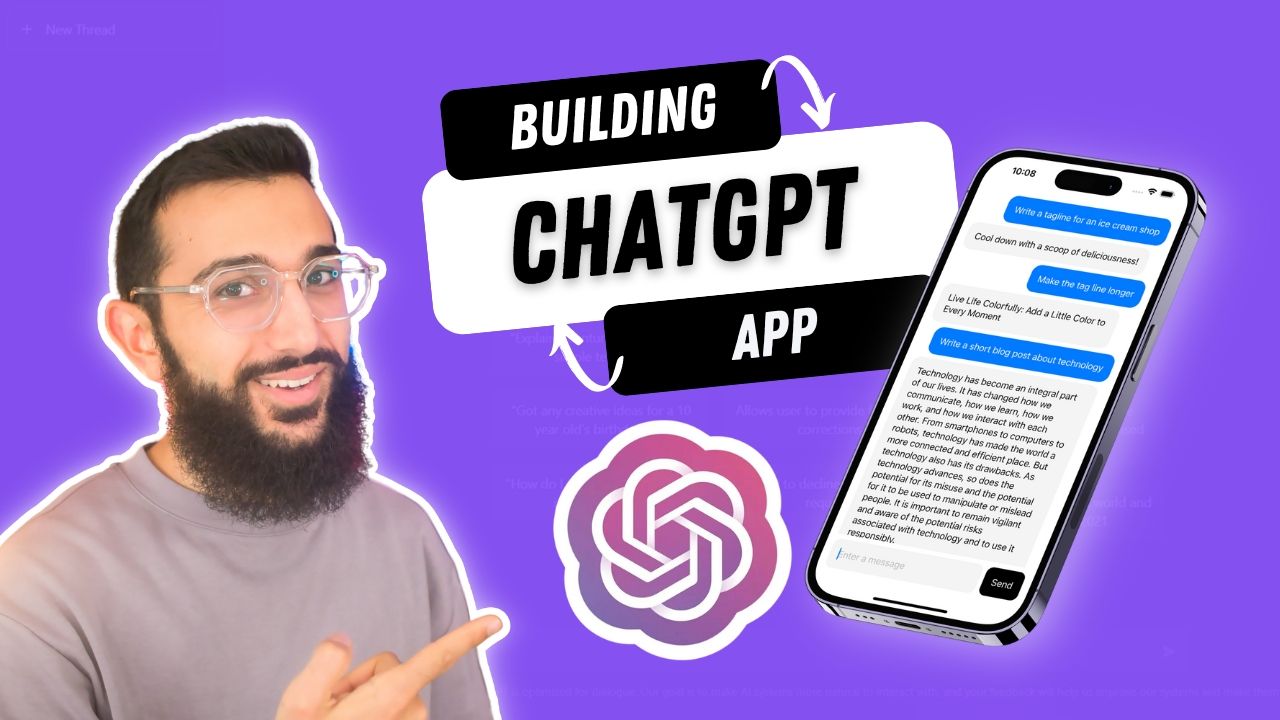
ChatGPT has taken the internet by storm for good reason - the technology is truly powerful. In this tutorial, we'll be building our own version of ChatGPT on iOS with SwiftUI. You'll learn how to build the chat UI, handle interaction with the OpenAI API, and parse the JSON response. By the end of this tutorial, you'll have a functional chat app that can understand natural language and generate quality content.

Mazen Kourouche
Jan 18, 2023
Setting up Xcode Project
First, we need to create a new Xcode project. Open Xcode and select __"File" > "New" > "Project." Choose the "iOS App" template and select "SwiftUI" as the User Interface. Give your project a name and select a location to save it.
Building the Chat UI
Hey, hi, hello! We will use SwiftUI's built-in components to build the chat UI. First, we'll create a new file called "ChatView.swift" and add it to the project. In this file, we'll define a struct called "ChatView" which will be our root view. We'll use a LazyVStack to arrange the views vertically and a List to display the messages.
1import SwiftUI23struct ChatView: View {4 var body: some View {5 LazyVStack {6 List {7 // messages go here8 }9 }10 }11}
We'll then add our Textfield to write our message and a Button to be able to send it. We'll also connect the 'return' function of our Textfield to be able to send the message as well.
1struct ChatView: View {2 var body: some View {3 ...4 HStack {5 TextField("Enter your message", text: $inputMessage) {6 sendMessage()7 }8 Button {9 sendMessage()10 } label: {11 Text("Send")12 }13 }1415 func sendMessage() {16 // Handle message login here17 }18}
Creating an OpenAI Account
In order to use OpenAI's completions API, we need to create an account on their website. Go to the OpenAI website, head to the API and sign up.
Getting OpenAI API Key
Once you have an account, you can generate an API key. Click on your account in the top right corner, select "View API Keys", and generate a new secret. Copy the API key, store it somewhere safe and avoid sharing it with anyone.
Storing Key in Constants
To keep our API key secure, we will store it in a constant. Create a new file called "Constants.swift" and add it to the project. In this file, we'll define an enum called Constants and add a constant called openAIApiKey which stores our API key.
1enum Constants {2 static let openAIApiKey = "YOUR_API_KEY"3}
Making the Requests
Importing Alamofire
To make requests to the OpenAI API, we'll use the Alamofire library. We'll be importing it as a Swift Package, however you can also use Cocoapods or other dependency managers. Go to the project settings, select your target and click "Swift Packages" and then "+" button, to add the library.
https://github.com/Alamofire/Alamofire.git
OpenAI Service
To keep our UI code clean from as much logic as possible, we'll create an OpenAIService class, which will handle making our requests, and relay that information back to our UI using Combine.
We'll make sure the class has the base URL and a function to send our message.
1import Alamofire23class OpenAIService {4 let baseUrl = "https://api.openai.com/v1/"56 func sendMessage(message: String) {7 // Make request here8 }9}
Since our request is a POST request, we'll create a body struct called OpenAICompletionsBody. The body will take in the following parameters:
- model: the OpenAI language model (we'll be using "text-davinci-003")
- prompt: the message we'd like to send to the API
- temperature: how random/determinative the responses should be between 0 and 1 (with 1 being most random and least deterministic)
- max_tokens: the maximum number of tokens our response should contain
For more information on this API, head to OpenAI API.
We'll also create a response object called OpenAICompletionsResponse.
1struct OpenAICompletionsBody: Encodable {2 let model: String // The language model3 let prompt: String // The message we want to send4 let temperature: Float?5 let max_tokens: Int?6}78struct OpenAICompletionsResponse: Decodable {9 let id: String10 let choices: [OpenAICompetionsChoice]11}1213struct OpenAICompetionsChoice: Decodable {14 let text: String15}
Next, we'll build our request in the sendMessage function of our OpenAIService. Lets start off with the body and our headers which will contain our API key. We'll also import the Combine framework to be able to return a publisher.
1import Combine23class OpenAIService {4 ...56 func sendMessage(message: String) {7 let body = OpenAICompletionsBody(8 model: "text-davinci-003",9 prompt: message,10 temperature: 0.7,11 max_tokens: 25612 )1314 let headers: HTTPHeaders = [15 "Authorization": "Bearer \(Constants.openAIAPIKey)"16 ]1718 // Make request here19 }20}
Next, we want to return make our request using a Combine publisher - we'll add the return to our function and create a Future which will make our request.
Make sure we pass in the body, the url and the headers to our request. We'll also make use of the Swift Result to send back our response:
1func sendMessage(message: String) -> AnyPublisher<OpenAICompletionsResponse, Error> {2 ...34 return Future { [weak self] promise in5 guard let self = self else { return }67 AF.request(8 self.baseUrl + "completions",9 method: .post,10 parameters: body,11 encoder: .json,12 headers: headers13 ).responseDecodable(of: OpenAICompletionsResponse.self) { response in14 switch response.result {15 case .success(let result):16 promise(.success(result))17 case .failure(let error):18 promise(.failure(error))19 }20 }21 }22 .eraseToAnyPublisher()23}
Connecting the UI and Service
Now that we've build our service and the UI, now it's time to connect it all up. We're going to jump back into our ChatView.swift file, and create a ChatMessage struct, and a sender enum to track who sent the message. This will allow us to handle our styling appropriately for each message.
1struct ChatMessage {2 let id: String3 let content: String4 let dateCreated: Date5 let sender: MessageSender6}78enum MessageSender {9 case me10 case gpt11}
Than declare an instance of the OpenAIService, create an empty state array of messages, and an AnyCancellable set to store our publisher (don't forget to import Combine).
1import Combine23struct ContentView: View {4 @State var chatMessages: [ChatMessage] = []5 @State var messageText: String = ""67 let openAIService = OpenAIService()8 @State var cancellables = Set<AnyCancellable>()910 var body: some View {11 ...12 }13}
Below our view's body, we'll create a messageView ViewBuilder function for the UI of each message. We'll style the messages conditionally and use a Spacer on either side to nudge the content based on the sender.
1func messageView(message: ChatMessage) -> some View {2 let senderIsMe = message.sender == .me3 return HStack {4 if senderIsMe { Spacer() }5 Text(message.content)6 .foregroundColor(senderIsMe ? .white : .black)7 .padding()8 .background(senderIsMe ? .blue : .gray.opacity(0.1))9 .cornerRadius(16)10 if !senderIsMe { Spacer() }11 }12}
Add the messageView to the body within the List.
1struct ChatView: View {2 ...3 var body: some View {4 LazyVStack {5 List {6 ForEach(chatMessages, id: \.id) { message in7 messageView(message: message)8 }9 }10 }11 }12}
To wrap it all up, we're going to finish off the sendMessage function in our ChatView for when we tap 'return' or the 'send' button.
When we send a message, we're going to create a ChatMessage and append that to the message. We'll then make an API request to OpenAI using the input text, then clear the input text.
1struct ContentView: View {2 ...34 func sendMessage() {5 let myMessage = ChatMessage(6 id: UUID().uuidString,7 content: messageText,8 dateCreated: Date(),9 sender: .me10 )11 chatMessages.append(myMessage)1213 openAIService.sendMessage(message: messageText)1415 messageText = ""16 }17}
All that's left is to subscribe to the publisher in our sendMessage function, and add the message that's received to our array.
1func sendMessage() {2 ...3 openAIService.sendMessage(message: messageText).sink { completion in4 // Handle error5 } receiveValue: { response in6 guard7 let textResponse = response.choices.first?.text8 .trimmingCharacters(9 in: .whitespacesAndNewlines10 .union(.init(charactersIn: "\""))11 )12 else { return }13 let gptMessage = ChatMessage(14 id: response.id,15 content: textResponse,16 dateCreated: Date(),17 sender: .gpt18 )19 chatMessages.append(gptMessage)20 }21 .store(in: &cancellables)22}
A Wrap
You're all set and should start being able to send message through the Chat UI. Feel free to style the messages and the interface however you like to bring your app to life and take the experience to the next level.
If you have any questions, feel free to send them through to my socials as I'll be more than happy to help! ✌️